
First, go to Microsoft Teams admin center: https://admin.teams.microsoft.com/dashboard
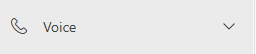
Then, go to the Voice section in the left hand side bar:
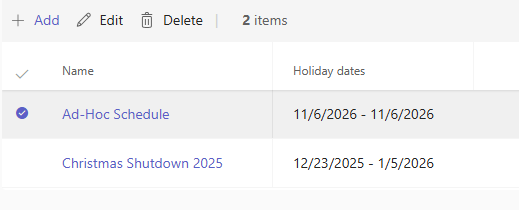
In this drop down, click on the Holidays section and click on either Ad-Hoc Schedule or the Christmas Shutdown schedule:
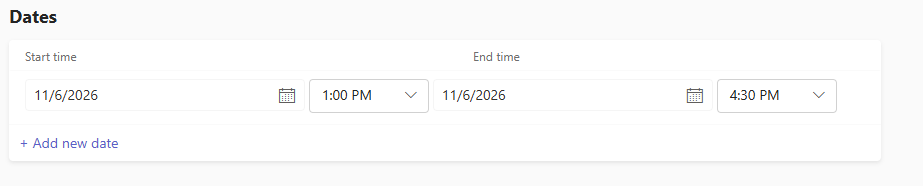
After that, choose the date range that you want the message to play between and the time range that you want the message to play between:
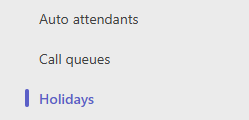
When that is complete, navigate to the Auto Attendants section in the left bar, 2 up from Holidays:
Once in this section, click into Rodo Ltd:

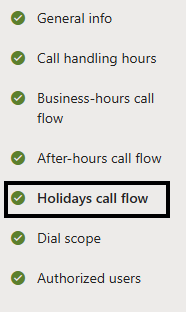
Click into the Holidays call flow section:
Click into the Ad-Hoc Schedule or Christmas Shutdown Message:
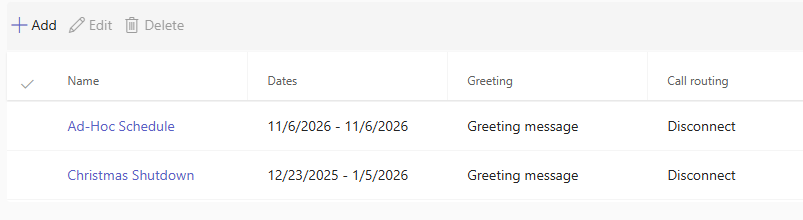
Then change the greeting message to portray what needs to be said to people calling the company phone number.
Here is an example from our Centenary Gala shutdown:

Finally, save the changes and exit out of Teams admin. It is also always best to test it when leaving and the message should be in effect just to double check that it is all working as expected.