
When opening the Business Central app for the first time, you will be met with this page:
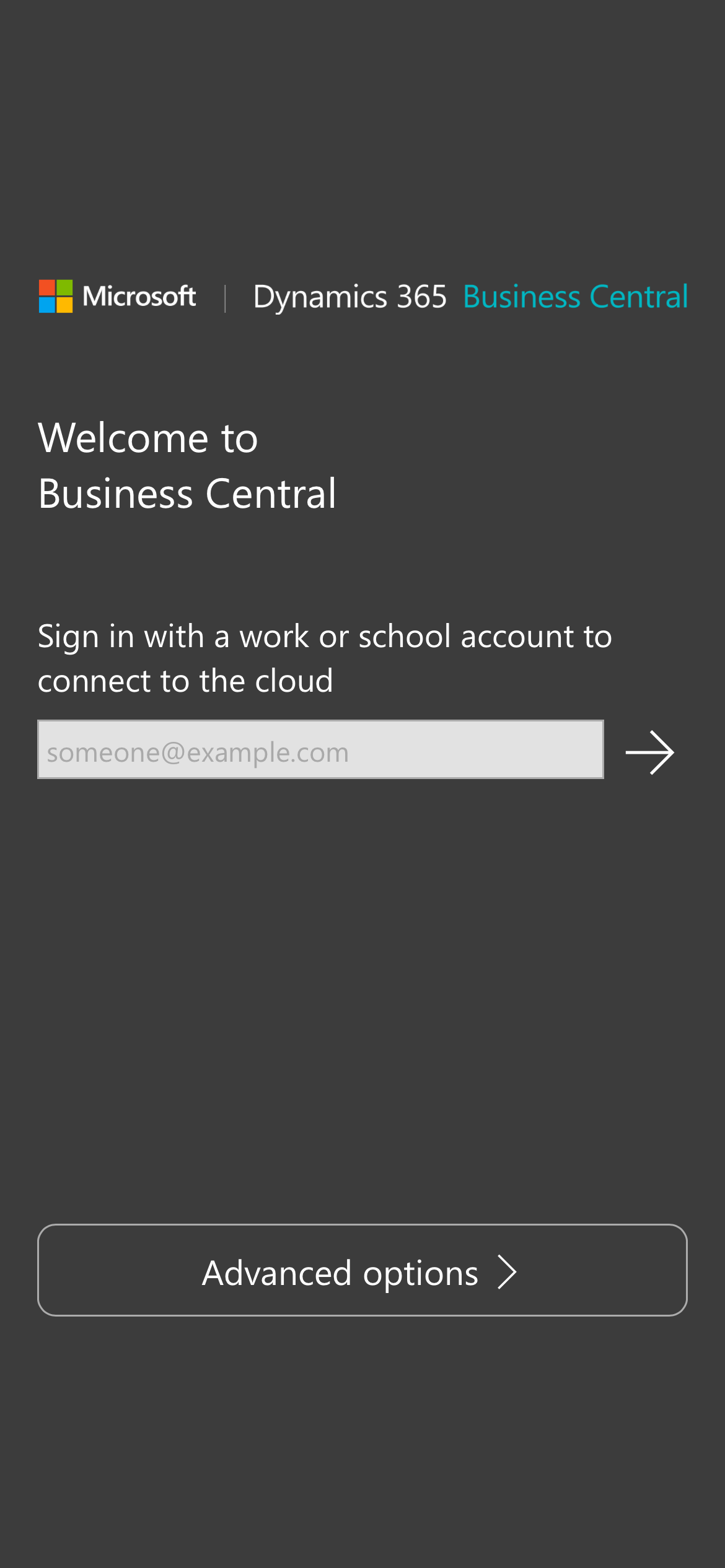
When met with this page, you will need to press on the "Advanced options" button as entering your email straight into there will lead to a license problem error.
After pressing the "Advanced options" button, you will see this screen:
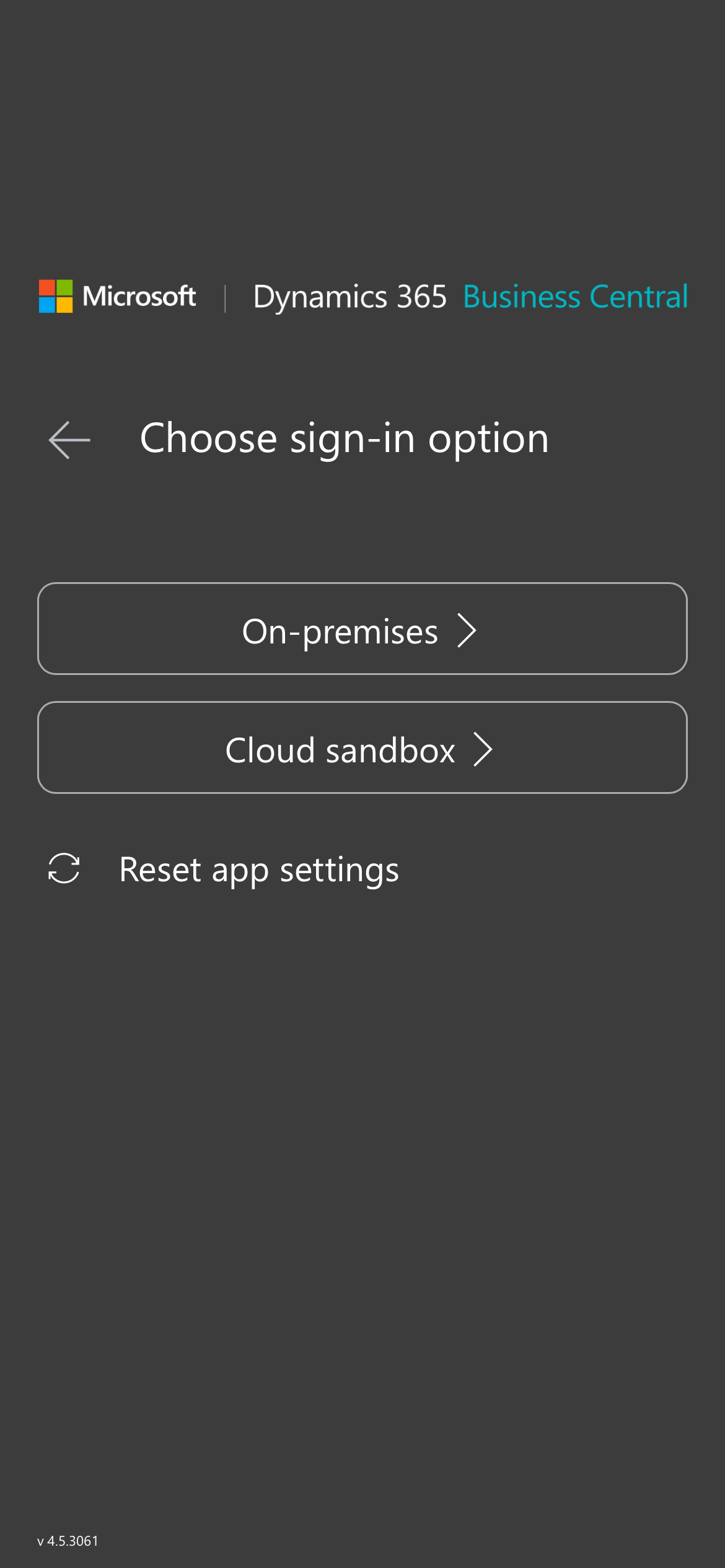
When at this page, you will need to press the "On-premises" button as we host our BC server in the office.
After pressing the "On-premises" button, you will be asked to enter a service name. This is the link to the BC website as shown below:
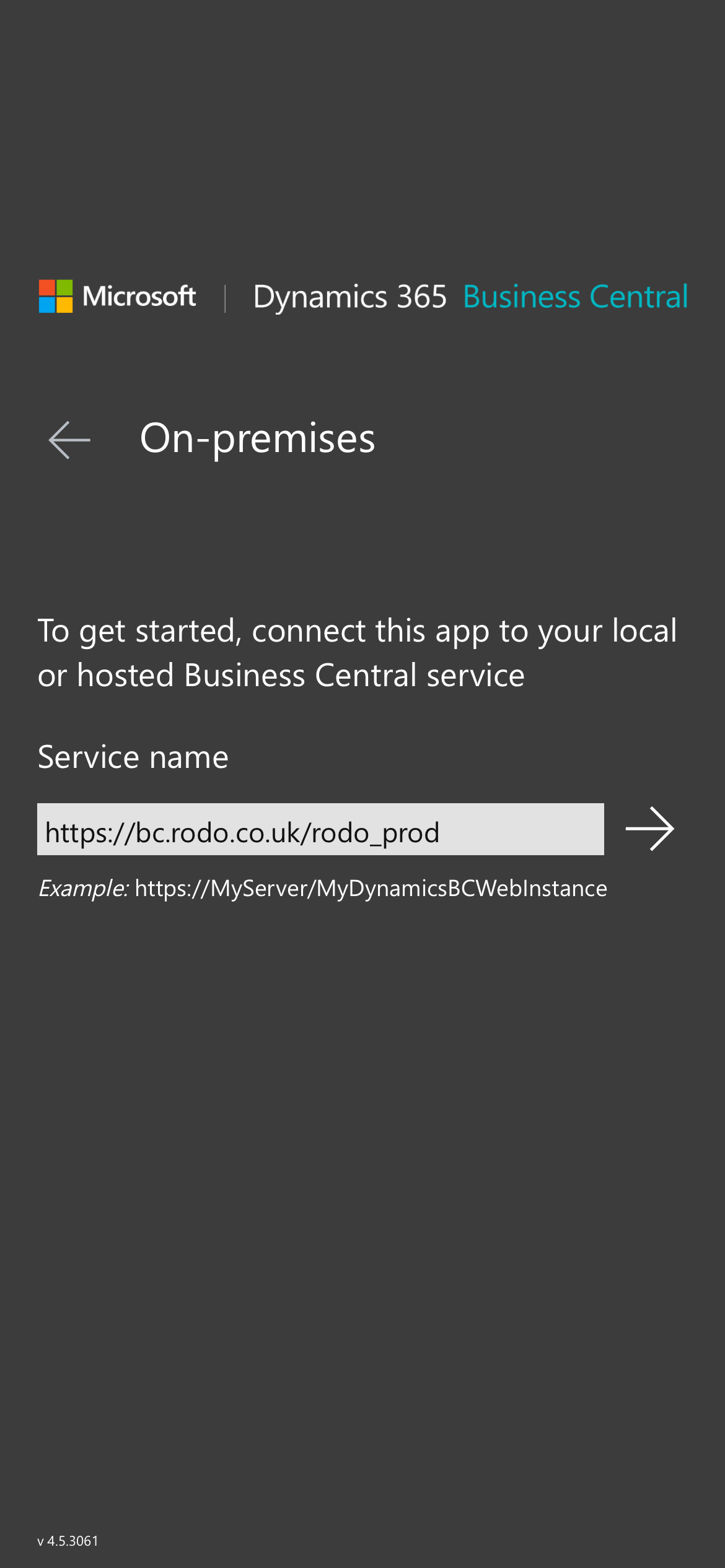
After inputting this link to the BC website and pressing the arrow next to the box, you will be asked to enter your email:
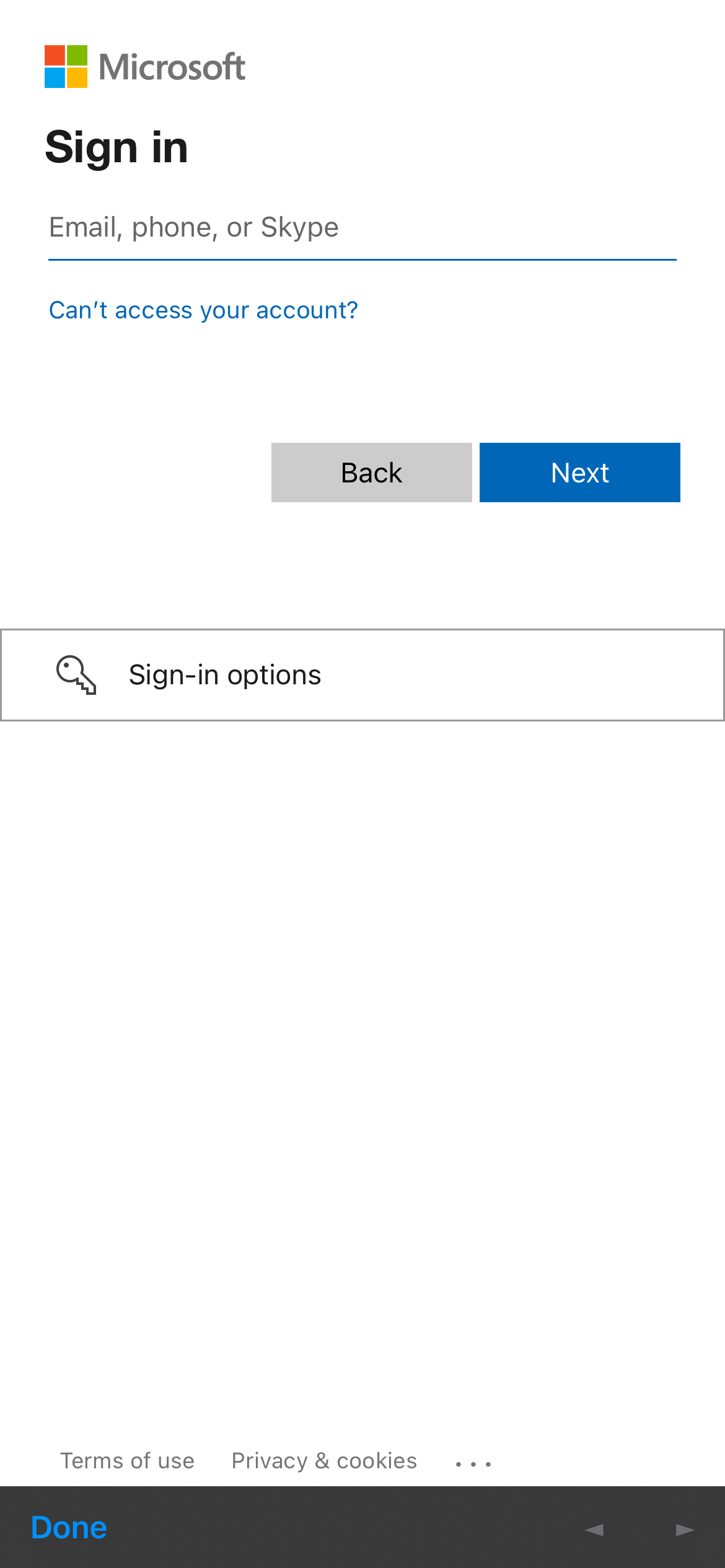
This will just be your usual Rodo email address that you log into BC normally with. You will then be asked to enter your password:
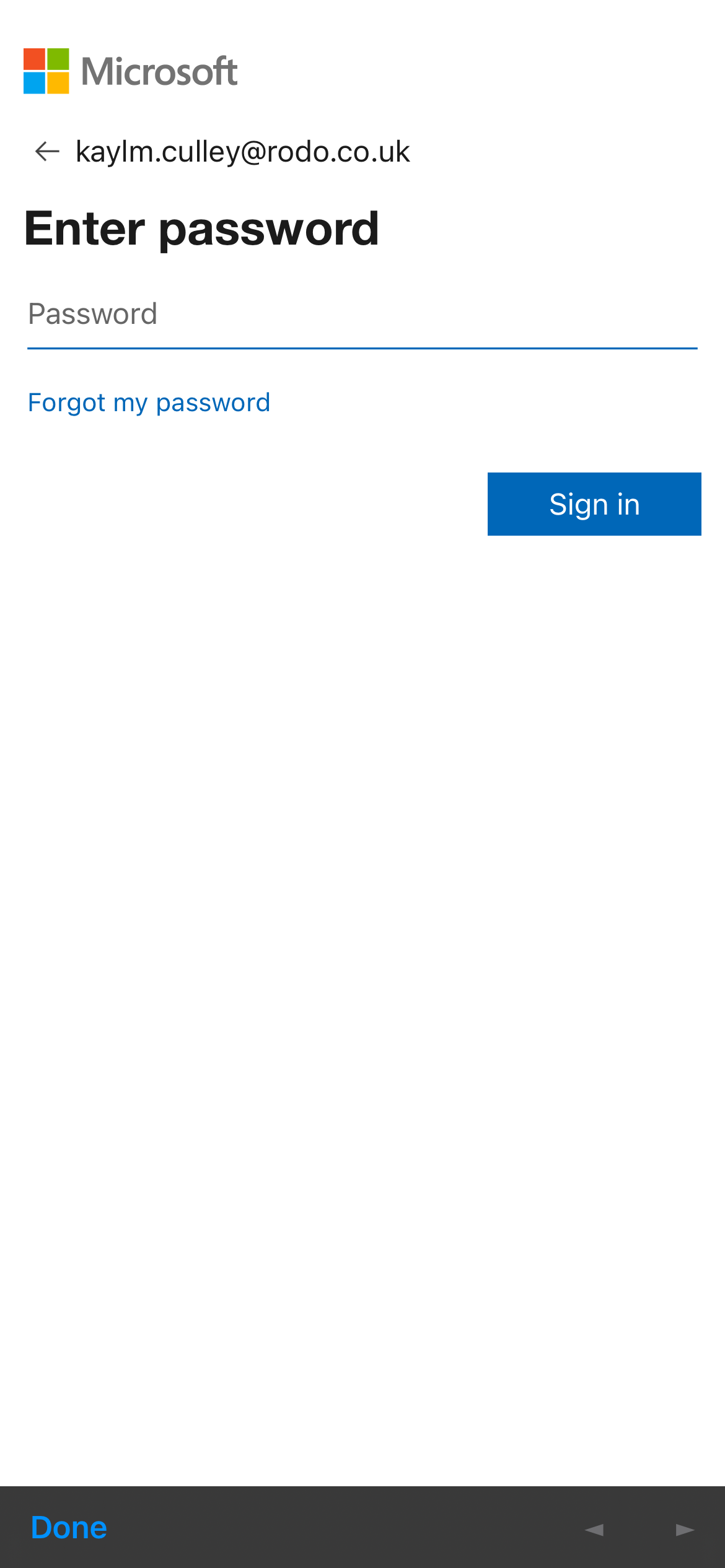
After entering your password if you have typed everything right, the app will prompt to open duo to verify that is it you logging into your account:
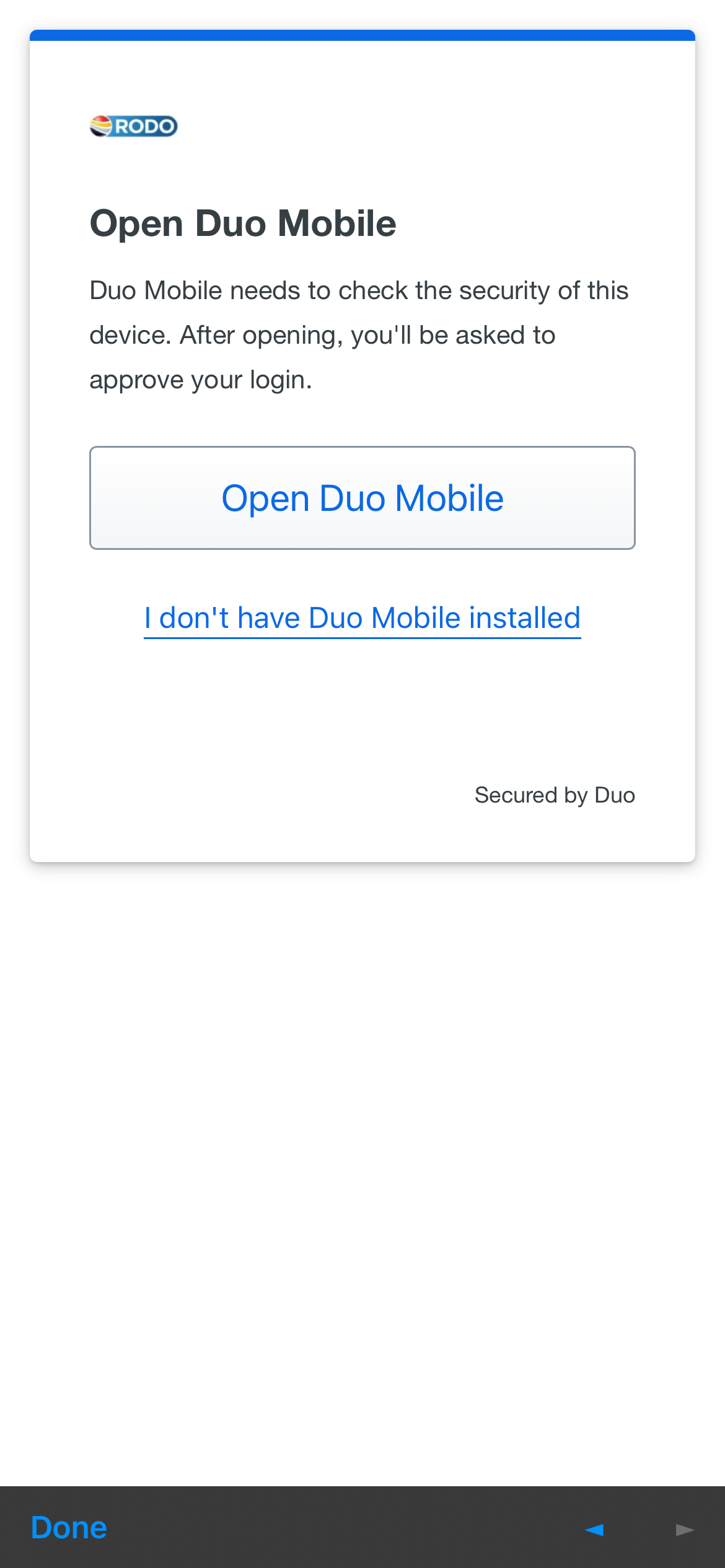
After pressing this button, it will take you to the duo app. Please verify this login and then switch apps back to the BC app which will then be logged in for you ready to use.